Getting started
Pairing a screen
Pair a tablet on the wall, your TV or a laptop with the pairing code, and use the screen with a remote control.
You pair every screen at home the same way: the screen shows a code, and you enter it on your phone. That way you can have several screens, such as a tablet in the kitchen and the TV in the living room.
The pairing code
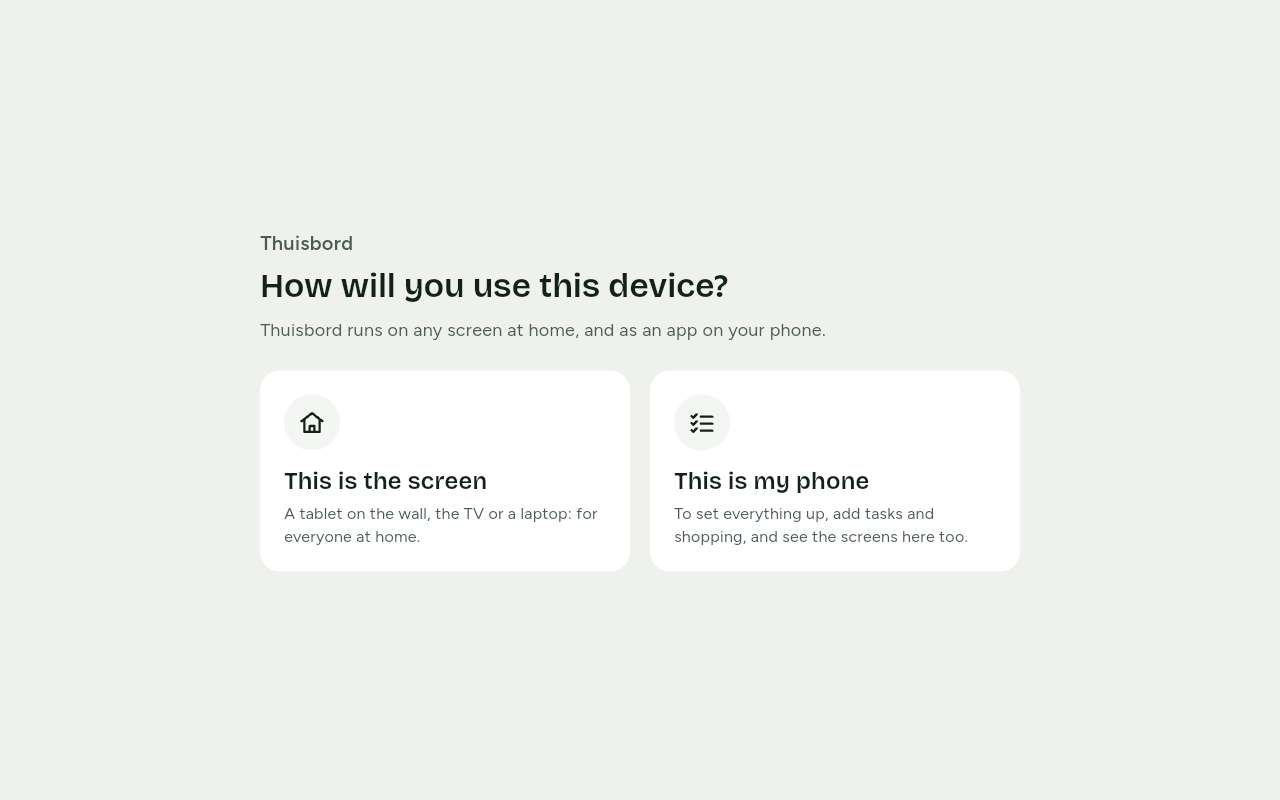
- Open Thuisbord on the screen. At How will you use this device? choose This is the screen.
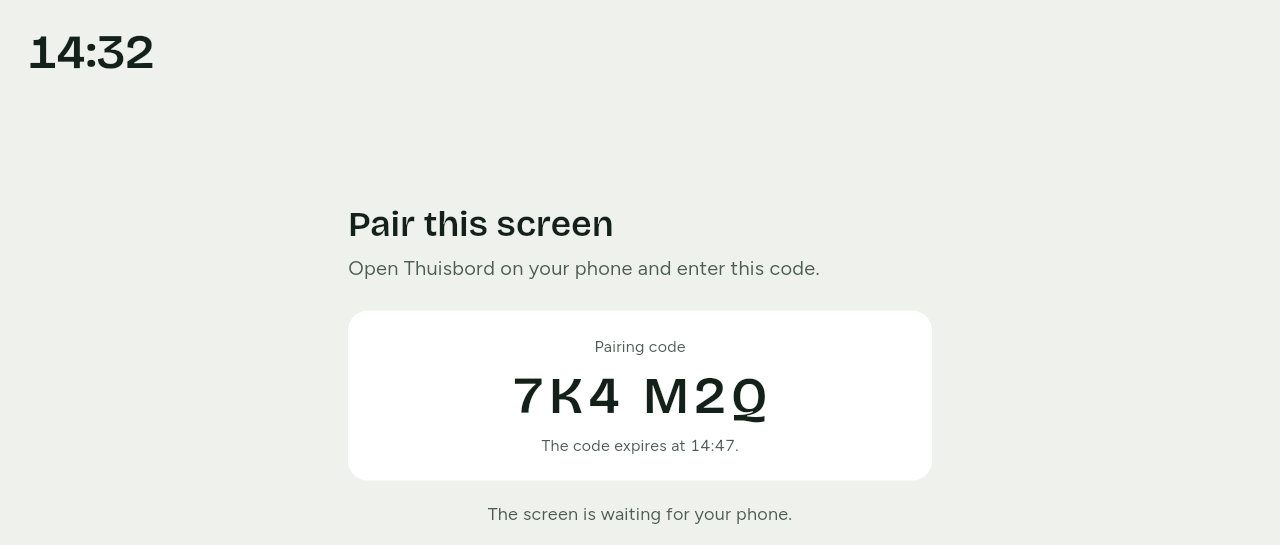
- The screen shows Pair this screen, with a Pairing code of six characters. Below it you see until when the code is valid.
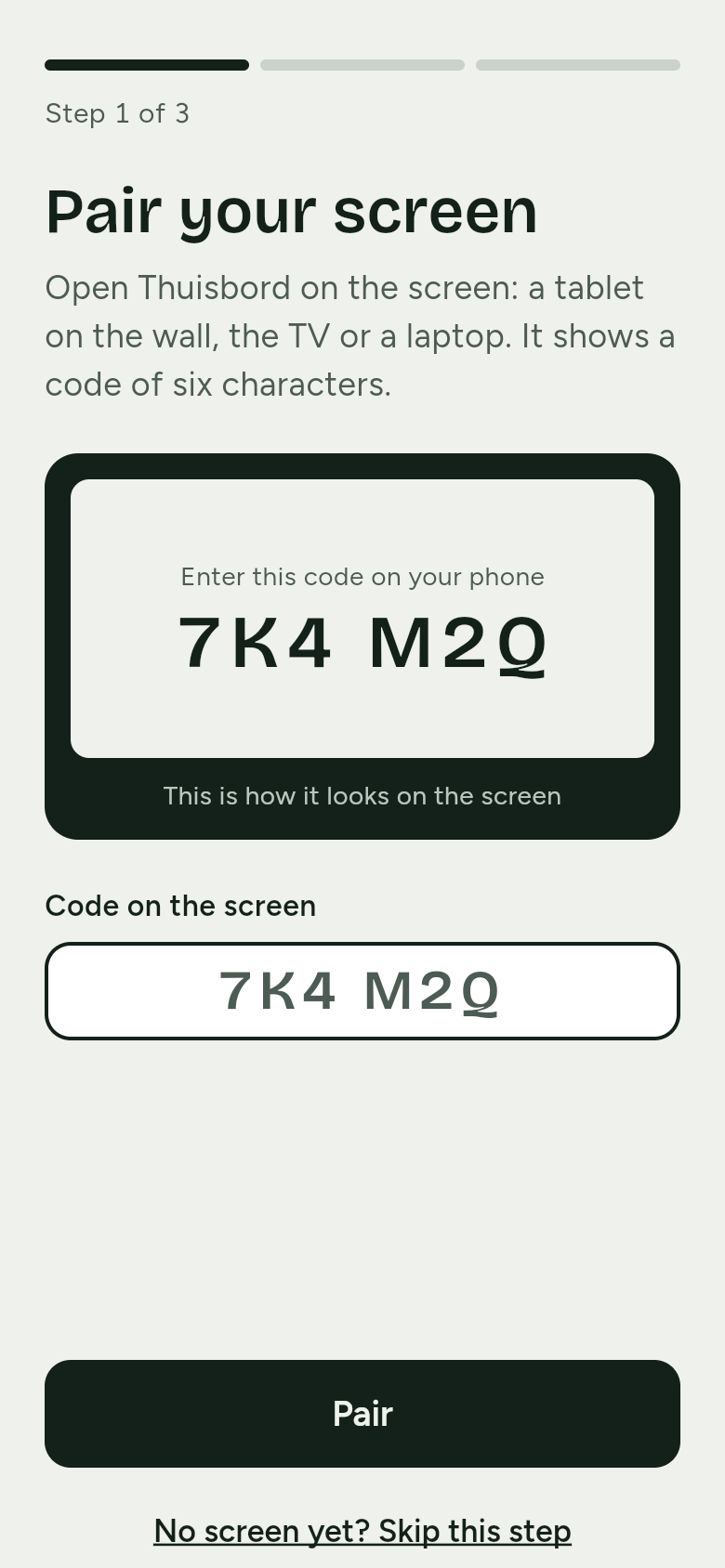
- Open Thuisbord on your phone. At Pair your screen, enter the six characters in Code on the screen and tap Pair.
- As soon as the screen is paired, the code disappears. Once setup is done, the screen shows the Home screen.
Tip
Do you see Enter all six characters.? Then a character is missing. Use the code that is on the screen now, and check below it until when it is valid.
When it is paired, a screen gets a key of its own. With it, the screen can read your household's data and tick off tasks and shopping items, and nothing more.
Pairing another screen later
On your phone, go to Settings and choose Pair a screen. Then follow the steps above.
A tablet on the wall
- Install the Thuisbord app on the tablet, open it and choose This is the screen.
- Thuisbord fills the whole screen, in landscape, and keeps the screen on.
- Hang the tablet where children can reach it too. On the Family screen, tasks are in the lower part.
- To prevent burn-in, Thuisbord shifts its content by a few pixels now and then. In the evening, evening mode dims the screen.
Tip
Keep the tablet on its charger, so it can stay on all day.
A TV
Open Thuisbord in the TV's browser; nothing needs installing. Choose This is the screen and pair the TV as above. We are still working out exactly which TVs work.
A laptop
Open Thuisbord in the browser and choose This is the screen. Make the browser window full screen, usually with F11, or Control-Command-F on a Mac. If the laptop becomes a fixed screen, turn off its sleep mode.
Using a remote control
On a TV, everything works with the remote control:
- The arrow keys move from button to button. The button you are on has a clear outline.
- OK or Enter chooses it.
- This works from the very first question, This is the screen or This is my phone.
- In evening mode, an arrow key or OK takes you back to the Home screen.