Getting started
Getting started
What you need for Thuisbord, and the order in which you set everything up.
Thuisbord turns a screen at home into your household's shared screen: how much power you are using right now, when power is cheap, and what is planned for the family today. You set everything up with the app on your phone.
What you need
- A screen. A tablet on the wall, your TV or a laptop. On a tablet you use the Thuisbord app; on a TV or a laptop it also runs in the browser, without installing anything.
- Homey or Home Assistant that already knows your smart meter. It sends the meter readings to Thuisbord, but only after you agree. Thuisbord only reads and never controls devices.
- A phone with the Thuisbord app. With it you pair the screen, connect the meter, enter your electricity contract, and add tasks and shopping.
Good to know
No Homey or Home Assistant yet? The calendar, tasks, shopping list and photos work without one. The energy cards on the screen then show how to connect a meter.
How to set everything up
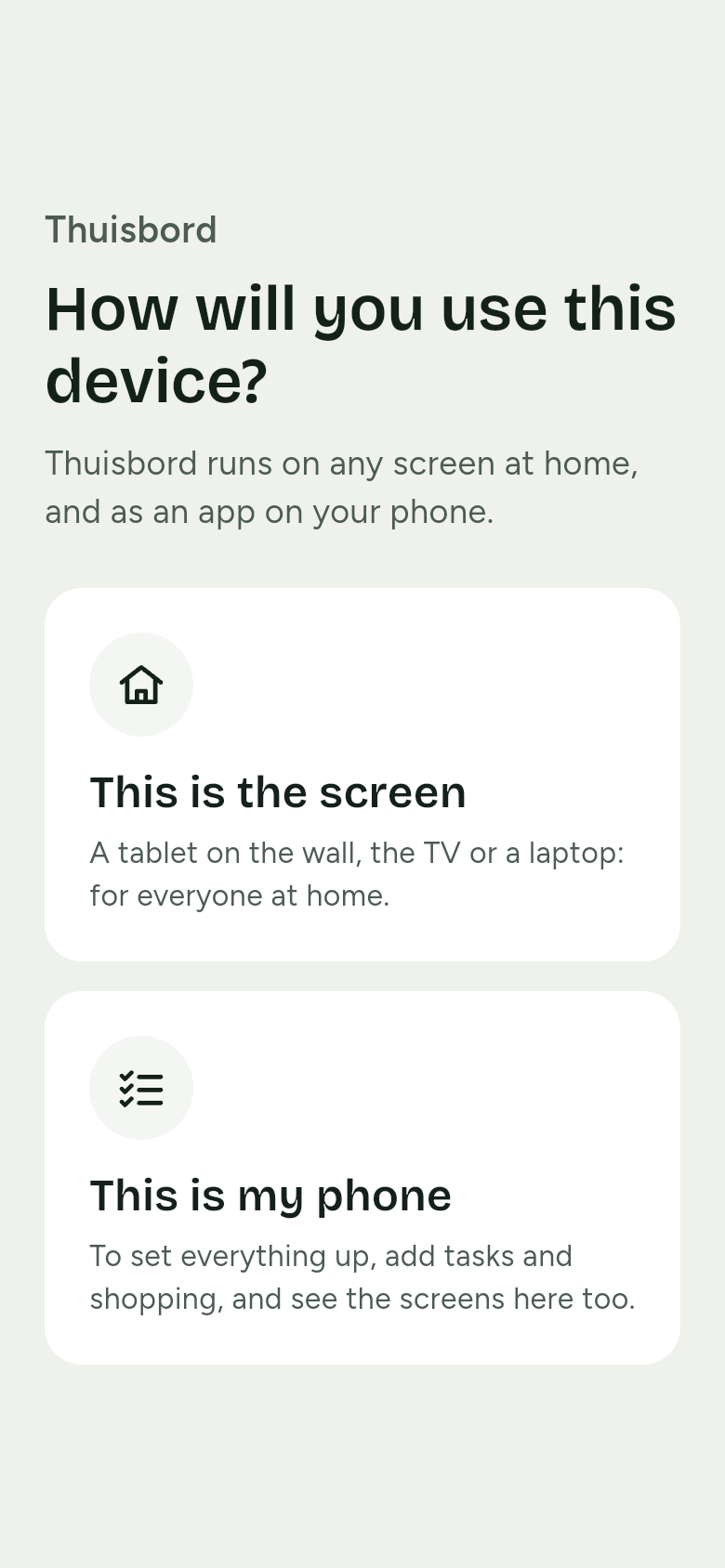
- Open Thuisbord on the screen and choose This is the screen. The screen shows a pairing code of six characters. How this works on a tablet, a TV or a laptop is in Pairing a screen.
- Open Thuisbord on your phone and choose This is my phone. Create an account and enter the screen's code at Pair your screen. The screen then gets a key of its own.
- Connect your meter through Homey or Home Assistant. Before anything is sent, your phone shows exactly which values Thuisbord receives and asks for your consent. It then shows the first reading as soon as it arrives. See Connecting the meter with Homey or Connecting the meter with Home Assistant.
- Choose your electricity contract and enter its prices: for a dynamic contract your supplier's markup, for a fixed contract one price, or a normal and a low tariff. See Contract and tariff.
- Enter your postcode, for the weather, and add the family members: a name and a colour for each person. See Family members.
- If you like: add a calendar link and photos, and invite other adults.
- Done. The screen on the wall switches from the code to the Home screen.
Tip
You can skip a step. Without a meter, setup simply continues and the family cards work straight away. You connect the meter later in Settings › Meter connection.
Who does what
- Whoever sets up Thuisbord does so on the phone: pairing the screen, the meter, the contract and the family members.
- Other adults at home sign in on their own phone to add tasks, shopping and photos.
- Everyone at home, children included, uses the screen on the wall. No sign-in is needed there: you read the screen and tick off a task or a shopping item with one touch.
What the screen shows
The screen has four views: Home, Prices, Family and, in the evening, evening mode. What everything means, and what the colours say, is in Reading the screen.