Meter and power price
Connecting the meter with Home Assistant
How Home Assistant sends the meter readings to Thuisbord: the connection key in secrets.yaml, the Thuisbord package and an automation made from the blueprint.
Good to know
Thuisbord does not receive meter readings yet; that goes live later. Until then the Thuisbord app shows Coming soon next to Home Assistant.
With this connection, your Home Assistant sends your smart meter's values to Thuisbord, so every screen at home can show them live. Thuisbord gets no access to Home Assistant and never controls a device.
You set up three things: the connection key in secrets.yaml, the Thuisbord package with the command that sends a reading, and an automation you make from the Thuisbord blueprint.
What Thuisbord receives
- Power: how much electricity you use or send back right now
- The meter totals for power from and to the grid, when your meter gives them
- Which tariff applies now: normal or low, when your meter reports it
- Solar production, when Home Assistant knows it
- The gas total, when your meter measures gas
Only power is needed. Home Assistant sends at most one reading every 10 seconds. There is more about this in What Thuisbord receives.
What you need
- Home Assistant with your smart meter already in it, for example through the DSMR or HomeWizard integration.
- A way to edit files in Home Assistant's configuration folder: the folder with
configuration.yaml. - The Thuisbord app on your phone.
1. Get your connection key
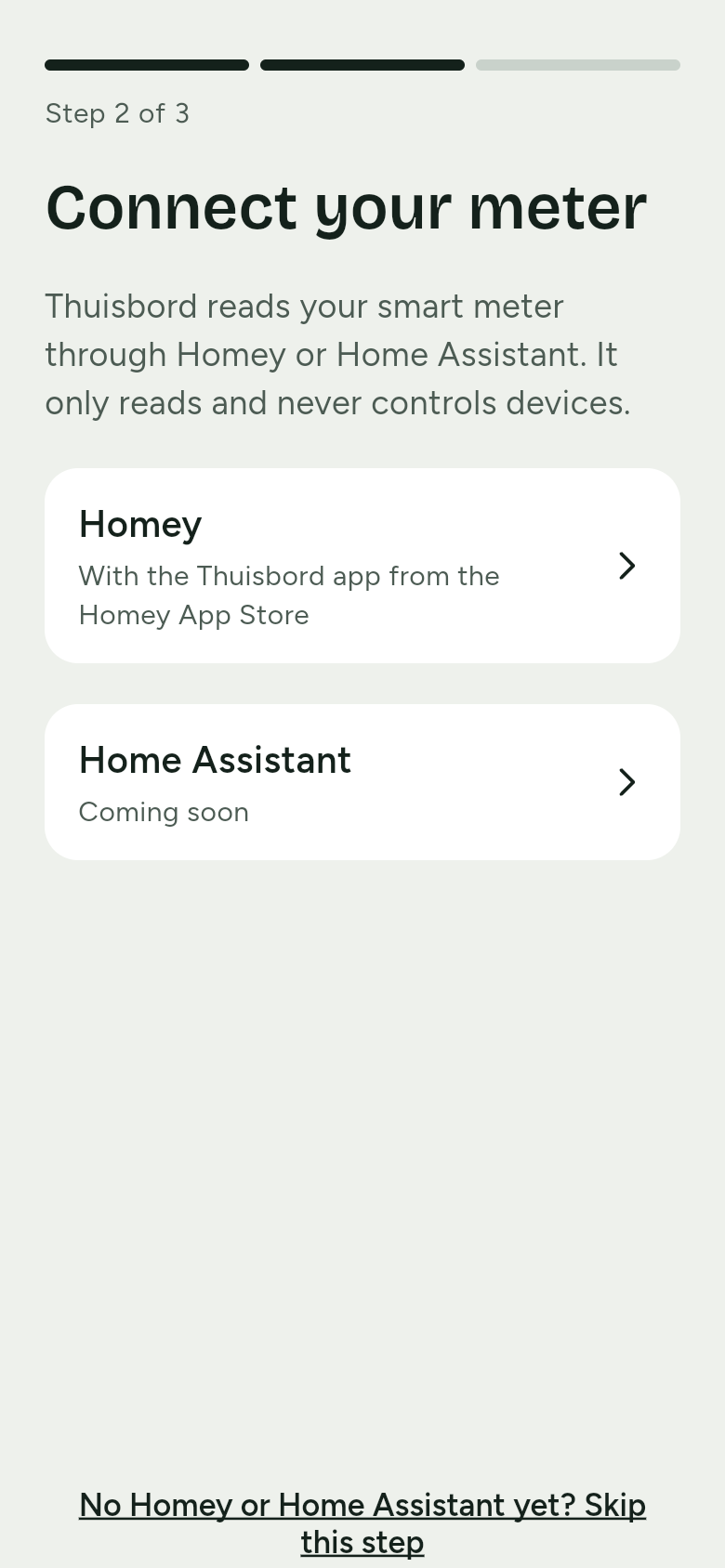
- In the Thuisbord app, open Settings › Meter connection › Connect meter. If you are just setting up Thuisbord, you reach Connect your meter on your own.
- Choose Home Assistant.
- Under Your connection key, tap Copy. Do not share the key with anyone else.
- Tap Next. You see What Thuisbord receives. Tap I agree.
- The app shows Waiting for the first reading…. Leave this screen open, or tap Continue meanwhile.
2. Put the key in secrets.yaml
Open secrets.yaml in the configuration folder (create it if it is not there) and add this line:
thuisbord_connection_key: "Bearer <plak hier jullie koppelsleutel>"
Replace <plak hier jullie koppelsleutel> with the key you copied. Keep Bearer and the space after it.
Watch out
The connection key belongs to your household. Never put secrets.yaml online and do not share the file with anyone.
3. Add the Thuisbord package
-
In the configuration folder, create a folder
packagesif there is none yet. -
Download thuisbord_package.yaml and put the file in that folder.
-
Add to
configuration.yaml:homeassistant: packages: !include_dir_named packagesIs
homeassistant:already there? Then add only thepackages:line below it. Is that line there too, then you have nothing to do.
The package holds the command that sends a reading to Thuisbord. The connection key is not in it: that comes from secrets.yaml. The package also keeps Home Assistant from writing the meter readings and the key to its log.
4. Add the blueprint
Choose one:
-
Import: go to Settings › Automations & scenes › Blueprints, choose Import Blueprint and paste this address:
https://thuisbord.app/downloads/home-assistant/thuisbord_send_readings.yamlChoose Preview and then Import Blueprint.
-
Place it yourself: download thuisbord_send_readings.yaml and put the file in the folder
blueprints/automation/thuisbordinside the configuration folder.
5. Check and restart
- Go to Settings › Tools › YAML and choose Check configuration. If you get an error, look at steps 2 and 3 again.
- Restart Home Assistant.
6. Create the automation
-
Go to Settings › Automations & scenes › Blueprints and choose Thuisbord: meterstanden sturen / send meter readings.
-
Choose your meter's sensors. Only power is needed: choose the other sensors only if your meter has them, and leave the rest empty.
In the blueprint DSMR HomeWizard Net power (leave empty) Power Import power Power consumption (leave empty) Export power Power production (leave empty) Import total Energy consumption (total), if your meter has it Energy import Import tariff 1 and 2 Energy consumption (tarif 1) and (tarif 2) Energy import tariff 1 and 2 Export total Energy production (total), if your meter has it Energy export Export tariff 1 and 2 Energy production (tarif 1) and (tarif 2) Energy export tariff 1 and 2 Active tariff Active tariff Tariff Gas total Gas consumption the sensor of Gas meter Tariff 1 and tariff 2 belong together. When both are known, Home Assistant sends the two. When one is unknown, or you chose only one, Home Assistant sends the total if you chose it, and otherwise no meter total. If you never send power back, leave the export fields empty. If your solar panels have their own sensor, choose it under Solar and gas.
-
Save the automation.
Your meter does not give everything?
That is fine. Thuisbord fills in what is missing:
- No totals per tariff? Then Thuisbord uses the total.
- No totals at all? Then Thuisbord works out your use from power. The screens then show Approximately with those figures; see Approximately and stale.
- No active tariff? Then Thuisbord uses the low-tariff hours in the Thuisbord app, under Settings › Contract and tariff › When does the low tariff apply?. See Contract and tariff.
Does it work?
Within half a minute the Thuisbord app shows First reading received, with Via Home Assistant at and the time. Later you find the connection under Settings › Meter connection.
Home Assistant sends nothing? Then Home Assistant's notifications show a "Thuisbord" notification that says what is wrong.
Notifications from Thuisbord
| You see | What it means | What to do |
|---|---|---|
| Thuisbord does not recognise the connection key (401) | The key in secrets.yaml is wrong, or Bearer is missing. |
Paste the key again, restart and turn the automation back on. |
The connection key was renewed or revoked (403 key_revoked) |
Someone made a new key in the app. | Copy the new key, put it in secrets.yaml, restart and turn the automation back on. |
Consent not given yet (403 consent_not_recorded) |
Nobody tapped I agree in the app yet. | Finish step 1 and turn the automation back on. |
This is not a connection key (403 token_not_allowed) |
Another key is in secrets.yaml. |
Use the key under Your connection key. |
| A value is wrong (422) | A sensor gives an odd value, or Home Assistant's clock is wrong. | Choose the right sensors. Home Assistant tries again after 5 minutes. |
| Change this automation at … | No power sensor is chosen, or a chosen sensor no longer exists or has a unit Thuisbord does not know. | Change the automation. Home Assistant looks again after 5 minutes. |
Is Thuisbord briefly unreachable, or does it ask to wait? Then you do not need to do anything: Home Assistant waits and then carries on. The screen then shows the last reading as stale.
After 401 and 403 the automation turns itself off. Turn it back on under Settings › Automations & scenes.
New key
If you make a new key in the app under Meter connection with Make a new key, the old one stops working at once. Put the new key in secrets.yaml, restart Home Assistant and turn the automation back on. See also Renewing the connection key.
Stop sending
- Pause: turn the automation off under Settings › Automations & scenes.
- Stop for good: in the Thuisbord app, tap Disconnect under Settings › Meter connection. Thuisbord then receives no more readings and the connection key stops working. Then remove the automation,
packages/thuisbord_package.yamland thethuisbord_connection_keyline insecrets.yamlfrom Home Assistant, and restart.