Meter and power price
Connecting the meter with Homey
Connect your smart meter through Homey Pro: the connection key, the Thuisbord app for Homey, your consent and the Flow.
Good to know
The Thuisbord app for Homey is planned: it is not in the Homey App Store yet. Thuisbord does not receive meter readings yet either; that goes live later. These steps apply once the app is there.
With this connection, your Homey sends your smart meter's values to Thuisbord, so every screen at home can show them live. Thuisbord gets no access to Homey and never controls a device.
What you need
- A Homey Pro with your smart meter (P1) already in it as a device.
- The Thuisbord app on your phone.
Good to know
You paste the connection key into the settings of the Thuisbord app on Homey. On Homey Cloud, apps may not have such a settings page, so this connection only works on Homey Pro.
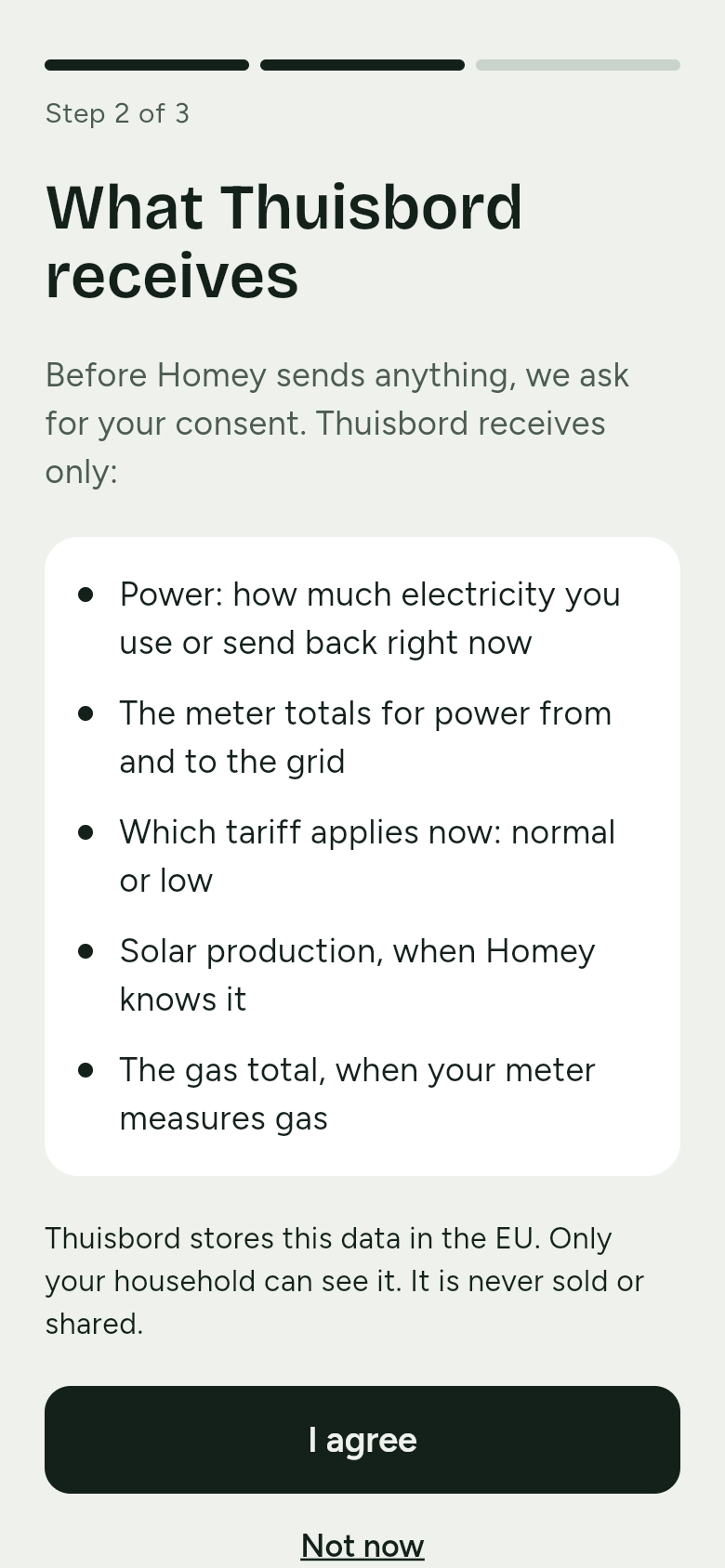
What Thuisbord receives
- Power: how much electricity you use or send back right now
- The meter totals for power from and to the grid, when your meter gives them
- Which tariff applies now: normal or low, when your meter reports it
- Solar production, when Homey knows it
- The gas total, when your meter measures gas
Only power is needed. Homey sends at most one reading every 10 seconds. There is more about this in What Thuisbord receives.
How to connect Homey
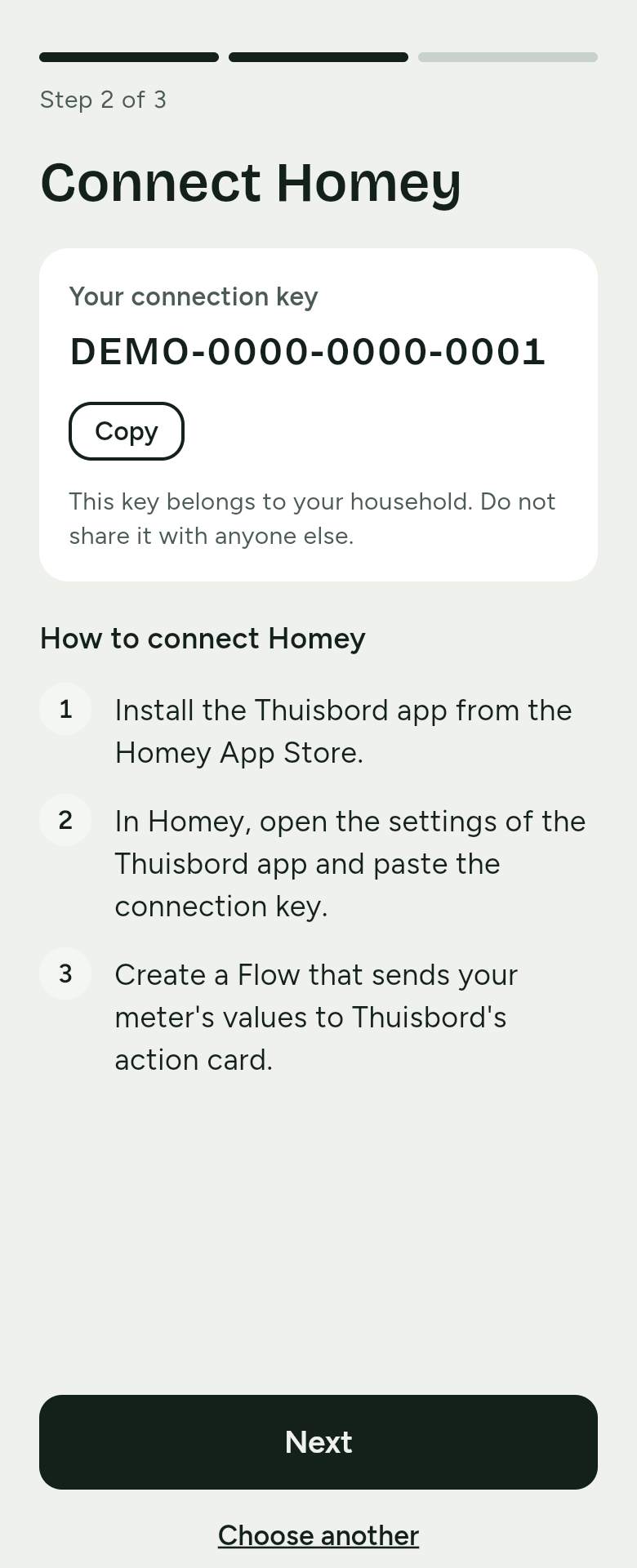
- Copy your connection key. In the Thuisbord app, open Settings › Meter connection › Connect meter and choose Homey. If you are just setting up Thuisbord, you reach Connect your meter on your own. Under Your connection key, tap Copy. Do not share the key with anyone else.
- Install the Thuisbord app from the Homey App Store.
- Paste the key. In Homey, open the settings of the Thuisbord app, paste the connection key and tap Save key. A connection key starts with
thb_. If the key does not have the right shape, for example because a piece is missing, you see that at once. - Give consent. In the Thuisbord app, tap Next. You see What Thuisbord receives. Tap I agree.
- Create a Flow in the Homey app:
- Under When: your P1 meter's card that fires when its power changes.
- Under Then: the Thuisbord card Send meter reading to Thuisbord.
- Fill in the Thuisbord card's fields: in a field, tap the tag symbol and choose your P1 meter's value. Only Power is needed. Fill in the other fields only if your meter gives that value, and leave the rest empty.
- Turn the Flow on.
| Field on the card | Choose your meter's tag for |
|---|---|
| Power | the power right now (in W), negative when you send power back; needed |
| Power import and Power export | only if your meter gives power as these two tags; then leave Power empty |
| Import total | the import total of both tariffs together (in kWh), if your meter gives it |
| Import tariff 1 and 2 | the import totals, tariff 1 and tariff 2 (in kWh): both or neither |
| Export total | the export total of both tariffs together (in kWh), if your meter gives it |
| Export tariff 1 and 2 | the export totals, tariff 1 and tariff 2 (in kWh): both or neither |
| Active tariff | the tariff that applies now (1 or 2), if your meter gives it |
| Solar power, Solar total, Gas total | only if you have them; otherwise leave empty |
If you fill in Power import and Power export, the Thuisbord app on Homey turns them into one power value. Only that one number goes to Thuisbord.
If your meter gives the totals per tariff and a total, you may fill them all in; Thuisbord then uses the totals per tariff. If you fill in only one of tariff 1 and 2, the Flow says which field is still empty.
Does your meter report every second? No problem: the Thuisbord app on Homey passes on at most one reading every 10 seconds.
Your meter does not give everything?
That is fine. Thuisbord fills in what is missing:
- No totals per tariff? Then Thuisbord uses the total.
- No totals at all? Then Thuisbord works out your use from power. The screens then show Approximately with those figures; see Approximately and stale.
- No active tariff? Then Thuisbord uses the low-tariff hours in the Thuisbord app, under Settings › Contract and tariff › When does the low tariff apply?. See Contract and tariff.
Does it work?
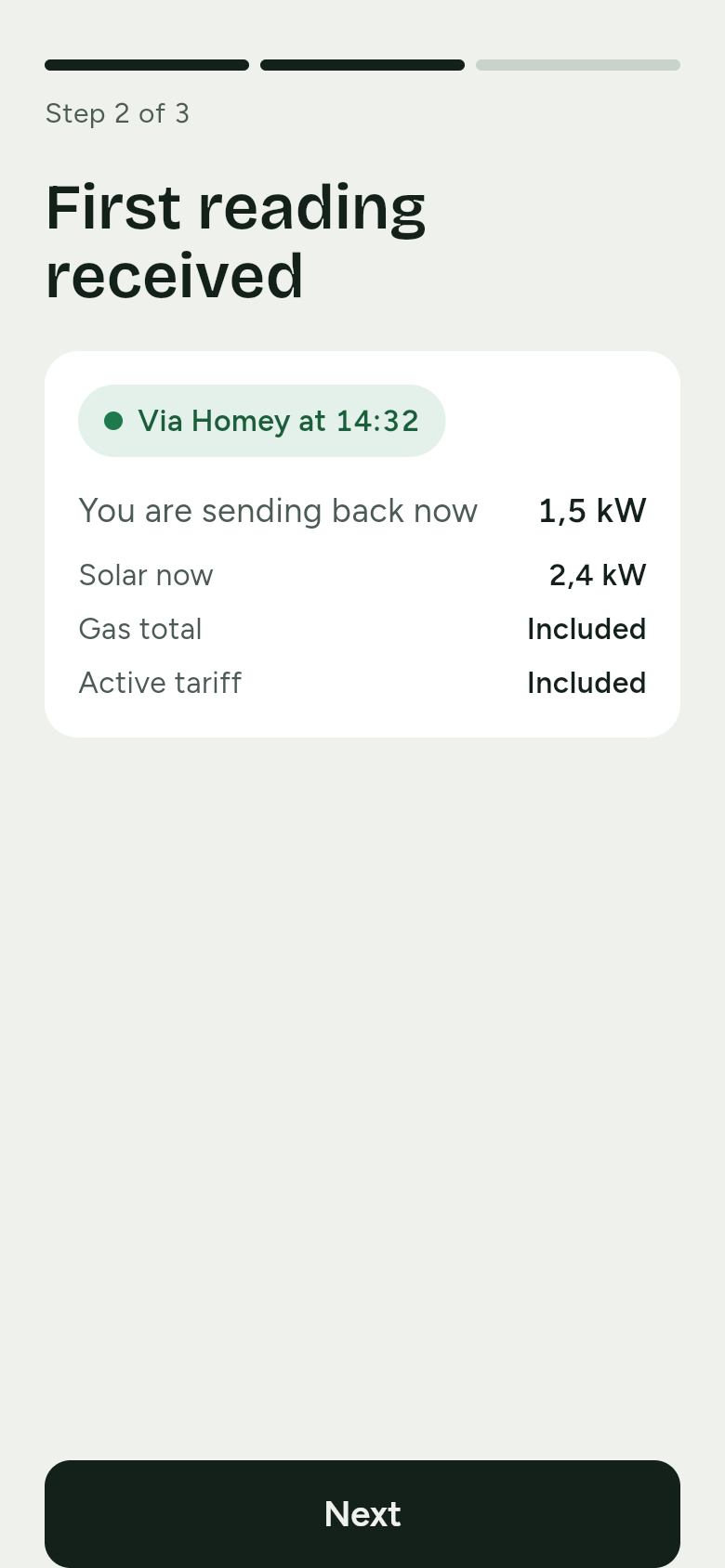
The Thuisbord app shows First reading received, with Via Homey at and the time. Later you find the connection under Settings › Meter connection, and the screen on the wall shows Live via Homey at the top right. The settings of the Thuisbord app on Homey show Connected, with the time of the last reading.
Nothing arrives? Then open the settings of the Thuisbord app in Homey. They say what is wrong. If a field on the card has the wrong tag, or only one of tariff 1 and 2 is filled in, the Flow itself says which field.
Messages in the Thuisbord app on Homey
| You see | What it means | What to do |
|---|---|---|
| Unknown key (code 401) | Thuisbord does not know the pasted key. | Copy the key again and paste it in the settings. |
Key renewed (code 403 key_revoked) |
Someone made a new key in the app. | Paste the new key. |
No consent yet (code 403 consent_not_recorded) |
Nobody tapped I agree in the app yet. | Give consent in the app and save the key in Homey again. |
Not a connection key (code 403 token_not_allowed) |
Another key is in the settings. | Use the key under Your connection key. |
| Wrong value (code 422) | A field on the card has the wrong tag. | Check the fields of the Flow card it names. |
| Wrong time (code 422) | Homey's clock is off. | Check Homey's date and time. |
| Thuisbord cannot be reached | Thuisbord or your internet is briefly away. | Nothing: the app keeps the readings for a while and sends them later. |
With Unknown key, Key renewed, No consent yet and Not a connection key the app stops sending until you save a key.
Solar panels
A smart meter only measures what goes in and out of the grid through your connection. If Homey also knows what your solar panels produce, fill in the solar fields on the card: the screen then shows the sun, the home and the grid separately. Without that value the app says Homey does not send solar production. The screen then shows only what goes from and to the grid.
New key
If you make a new key in the app under Meter connection with Make a new key, the old one stops working at once. Then paste the new key into the settings of the Thuisbord app on Homey. See also Renewing the connection key.
Stop sending
- Pause: turn the Flow off, or tap Remove key in the settings of the Thuisbord app on Homey.
- Stop for good: in the Thuisbord app, tap Disconnect under Settings › Meter connection. Thuisbord then receives no more readings and the connection key stops working. Then delete the Flow, and the Thuisbord app from Homey if you like.