Family
The shopping list
Add shopping with an amount and a note, avoid doubles, tick items off and add items you bought before again.
Your household has one shared shopping list. Adults add to it from their phone; everyone ticks items off on the screen on the wall or on a phone.
Adding an item
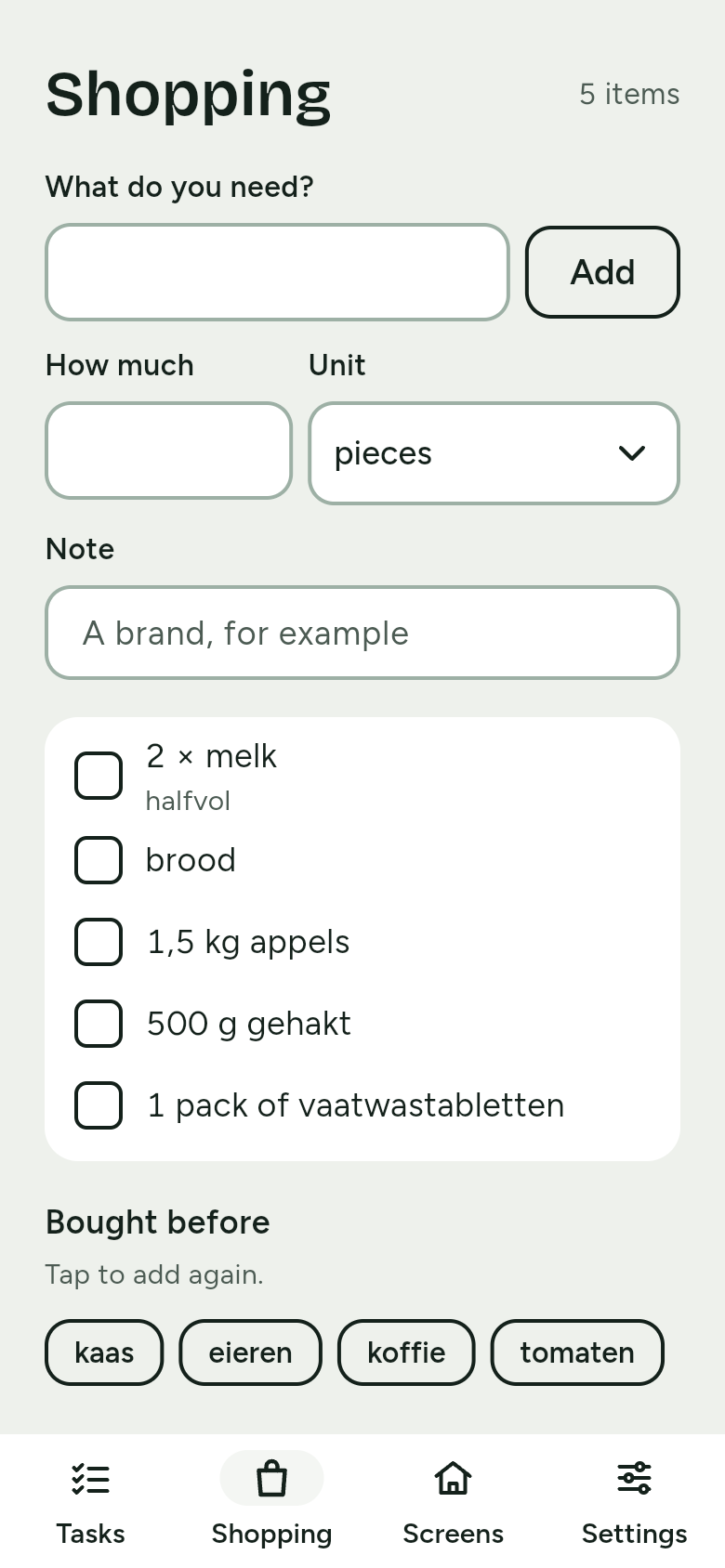
On your phone, open Shopping.
- At What do you need? type what you need, for example milk.
- Want an amount? Fill in How much, such as 2 or 1,5, and choose the Unit: pieces, g, kg, ml, l, pack, bottle or can.
- At Note add something extra, a brand for example.
- Tap Add.
On the screen the amount appears before the name, such as 2 × milk, 500 g mince or 1 pack of dishwasher tablets, and the note below it. If the amount is not a number, the app says Enter an amount, such as 2 or 1,5.
Already on the list?
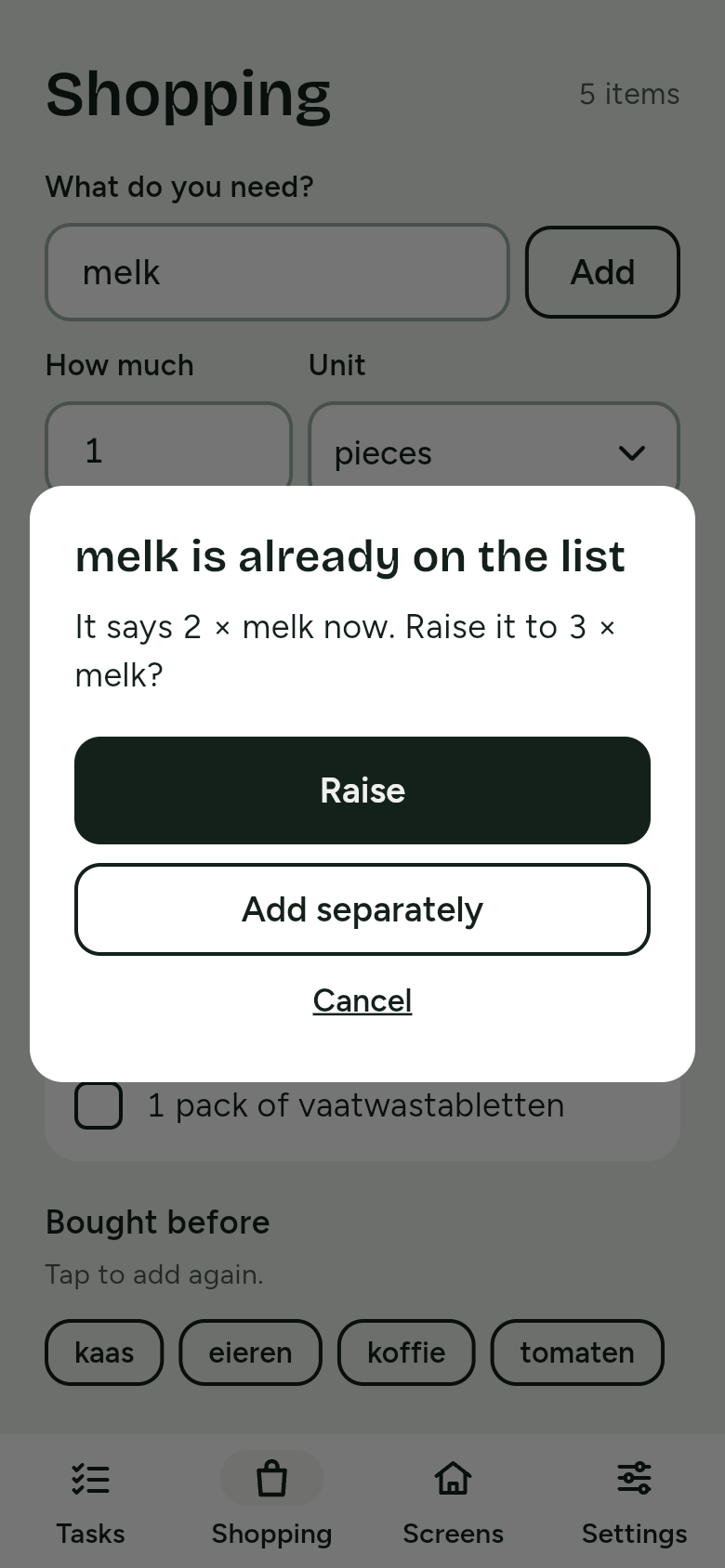
When you add something that is already on the list, the app offers to raise its amount instead of adding it twice:
- Raise: the amounts are added up, for example from 2 × milk to 3 × milk. Grams and kilograms add up too, as do millilitres and litres.
- Add separately: it goes on the list once more, for a different brand for example.
- Cancel: nothing changes.
When the amounts cannot be added up, such as a pack and a bottle, the app only shows what is on the list now.
Ticking off
- On the screen on the wall, the list is on the Family screen, under Shopping. One touch ticks an item off; no sign-in is needed.
- In the app, tap the box in front of the item.
- By mistake? For five seconds, Undo appears.
- Ticked-off items disappear from the screen when the day is over.
- Ticking off also works without internet on the screen. It is sent on as soon as the connection is back, and then shows on every phone within 10 seconds.
Bought before
Below the list in the app is Bought before: what you have ticked off before. Tap to add again.