Family
Tasks
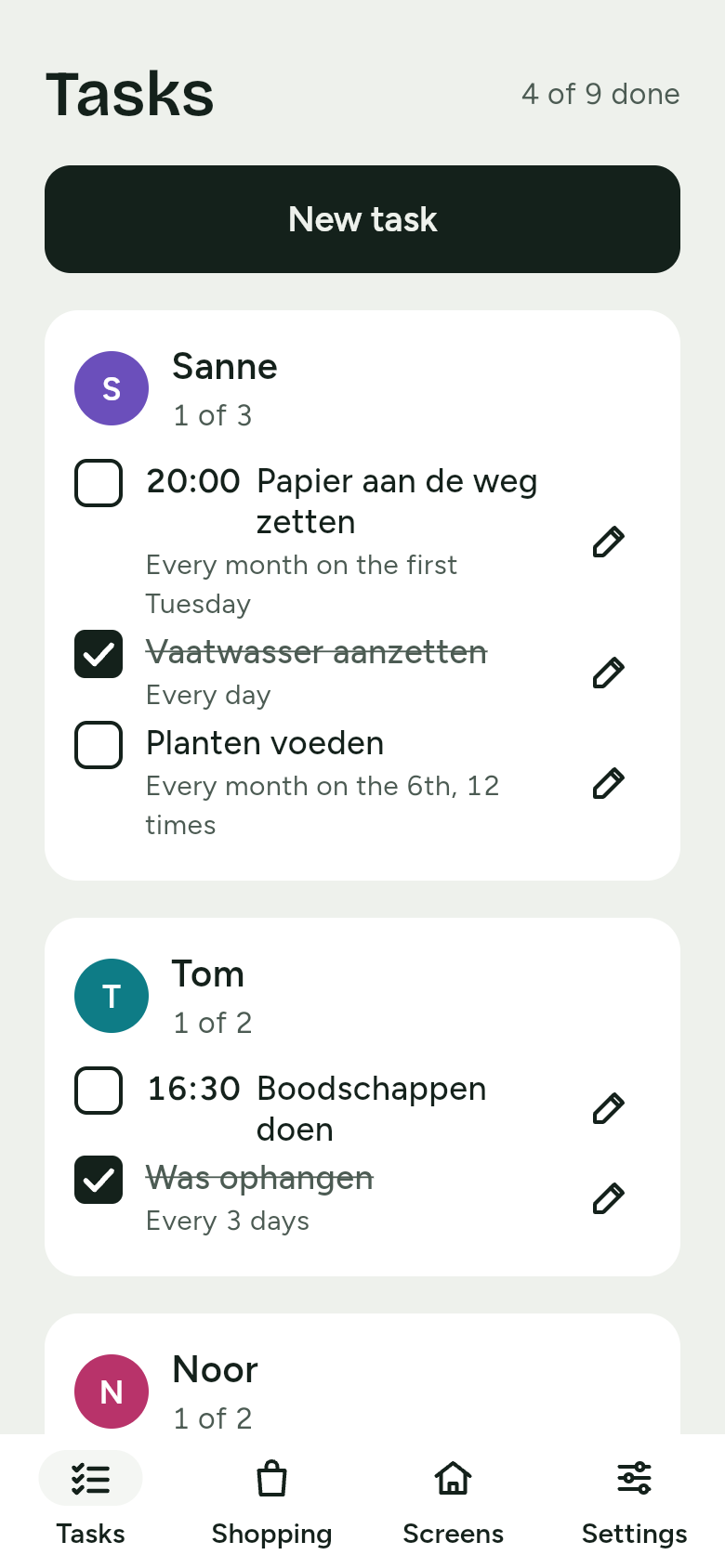
Add tasks on your phone, make them repeat, and tick them off on the screen with five seconds to undo.
Tasks are to-dos and recurring chores, per family member. Adults add them on their phone; everyone ticks them off on the screen on the wall.
Adding a task
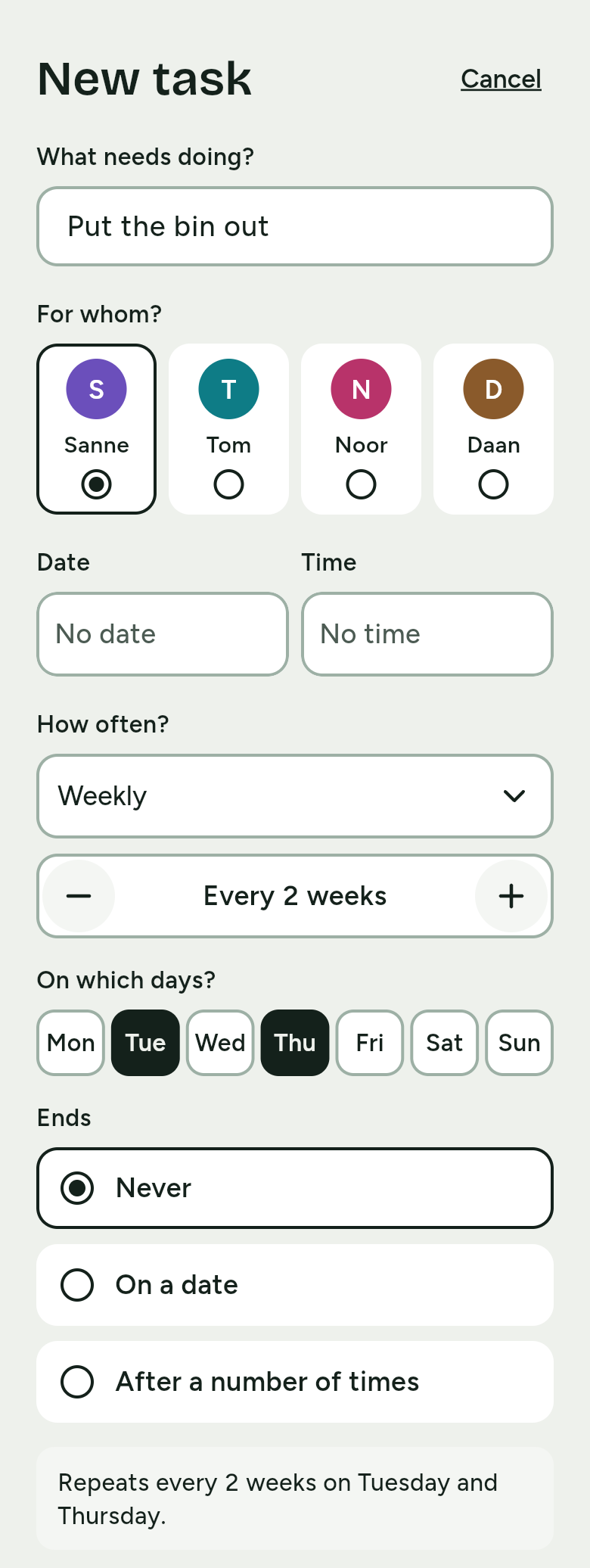
- On your phone, open Tasks and tap New task.
- At What needs doing? type the task, for example Put the bin out.
- At For whom? choose the family member.
- Want a day or a time? Choose a Date and a Time. You may leave both empty: they then say No date or No time.
- At How often? choose whether the task repeats; see below.
- Tap Add task.
If you forget the name, the app says Give the task a name. To change a task, tap the pencil beside it in the list: Edit task opens, and you tap Save.
How often?
Under How often? you choose Once, Daily, Weekly, Monthly or Yearly. One fewer and One more set every how many days, weeks or months. At the bottom, your choice appears in plain words, starting with Repeats. The same words appear with the task in the list later.
| What you choose | What it says |
|---|---|
| Daily | every day |
| Daily, every 3 days | every 3 days |
| Weekly, Monday | every week on Monday |
| Weekly, every 2 weeks, Monday and Thursday, time 18:00 | every 2 weeks on Monday and Thursday at 18:00 |
| Monthly, On a set day, the 15th | every month on the 15th |
| Monthly, On a set day, the last day | every month on the last day |
| Monthly, On a set weekday, first Saturday | every month on the first Saturday |
| Monthly, every 3 months, On a set weekday, last Friday | every 3 months on the last Friday |
| Yearly, 6 October | every year on 6 October |
- Weekly: at On which days? tap one or more days.
- Monthly: choose On a set day, with the Day of the month (the 1st up to the last day), or On a set weekday, with Which (first, second, third, fourth or last) and the Weekday.
- Yearly: choose the Day and the Month.
When it ends
At Ends you choose:
- Never: the task keeps repeating.
- On a date: for example every week on Tuesday, until 22 December 2026.
- After a number of times: for example every month on the 6th, 12 times.
Ticking off on the screen
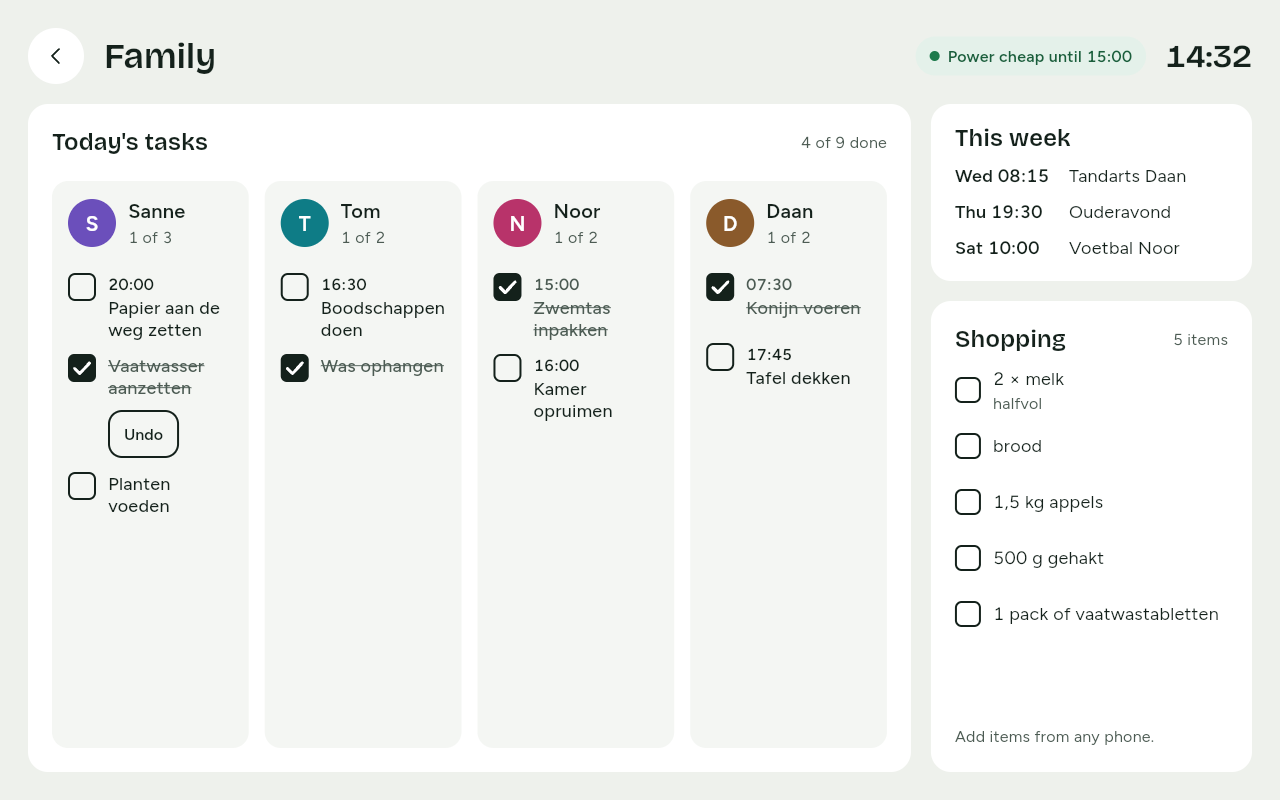
On the Family screen, Today's tasks shows today's tasks per family member. Tasks with a time are listed in time order. The Home screen shows how many are done, for example 3 of 9 done.
- One touch on a task ticks it off. No sign-in is needed, so children can do it too.
- By mistake? For five seconds, Undo appears below the task. One touch and the task is open again.
- A ticked-off task shows as done on every other phone and screen within 10 seconds, while they are online.
- No internet on the screen? Ticking off still works. The screen remembers it and sends it on as soon as the connection is back.
A repeating task does not come back straight after you tick it off, but on the next day it is due.
You can also tick off in the app: tap the box in front of the task in Tasks.